

Opal is an app designed to help people take control of their screen time so they can focus better, sleep more soundly, and spend more quality time offline. For those setting up limits on behalf of their children, or for those who need an extra push to stay off their screen, Opal offers a simple way to set boundaries around app use — and a way to lock those Settings with a secure Pin Code if you're using the iOS version of the app.
Once set up, the Pin Code enabled device won’t be able to change or turn off the restrictions you've chosen. You decide which apps to block (like social media, games, or video platforms) and when they should be off-limits — for example, during bedtime, school hours, or family time. Opal takes care of the rest.
Below are step-by-step instructions to help you add a Pin Code to protect the Settings you’ve chosen.
Follow these steps to lock in Session Settings and ensure they can't be changed:
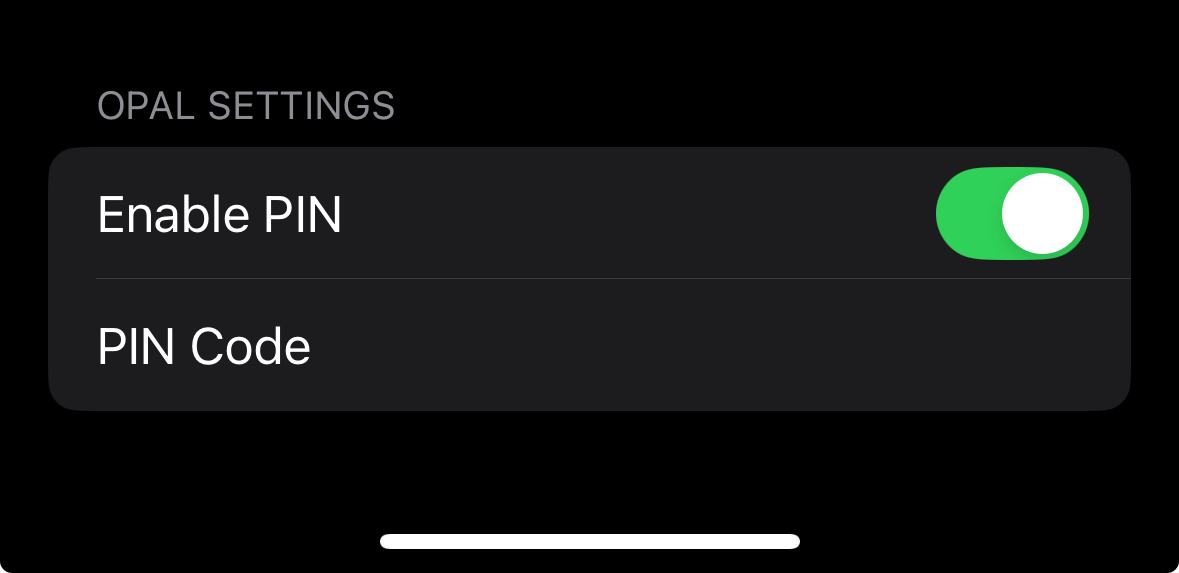
The Pin Code is now enabled. Please note you may input and change your Pin Code from both your Opal "Settings" and from your device "Settings" when you navigate to "Apps" > "Opal".
If you've forgotten the Pin Code you've set within Opal and need to reset or disable it, please take these steps:
For maximum protection, combine Opal's Pin Code with a Screen Time Passcode. Available on iOS 26.4+, the Screen Time Passcode locks Opal's permissions at the iOS level so they can't be turned off. If you're setting up Opal on your child's iOS device, you may also benefit from our Parental Controls options.
Currently, we're working on implementing feature parity for our Mac app and for our newly launched Android app. Stay tuned on that front!
