

Opal is a powerful tool designed to help you stay focused and productive by managing your screen time and reducing distractions. To make Opal foolproof on your iPhone or iPad, you can set up advanced features that will ensure sure you can't cancel, bypass or change the restrictions you put in place. Here are five advanced Opal features to help keep you on track.
🔒 This is the single strongest foolproof move on iOS. When a Screen Time passcode is set, Opal cannot be uninstalled without it — even after a session ends, even after a force-quit. Combined with our app-level protections, this turns Opal into a true hard block.
On iOS 26.4, Apple now offers the option to protect Screen Time settings behind a dedicated 4-digit passcode. If a Screen Time Passcode is set, you will be required to input your passcode to disable Opal's access to Screen Time — meaning no one can toggle off Opal's permissions without knowing this code. Face ID and the device passcode cannot bypass it. We recommend having a trusted friend or family member set the passcode so you don't know it yourself. To enable this feature, follow these steps:
Once implemented, your Screen Time Passcode will be required to delete Opal, or to disable Opal's access to Screen Time.
💡 Tip: hand your phone to a friend, partner, or family member and have them set the 4-digit passcode without telling you. If you know the code, you can defeat the foolproof protection.
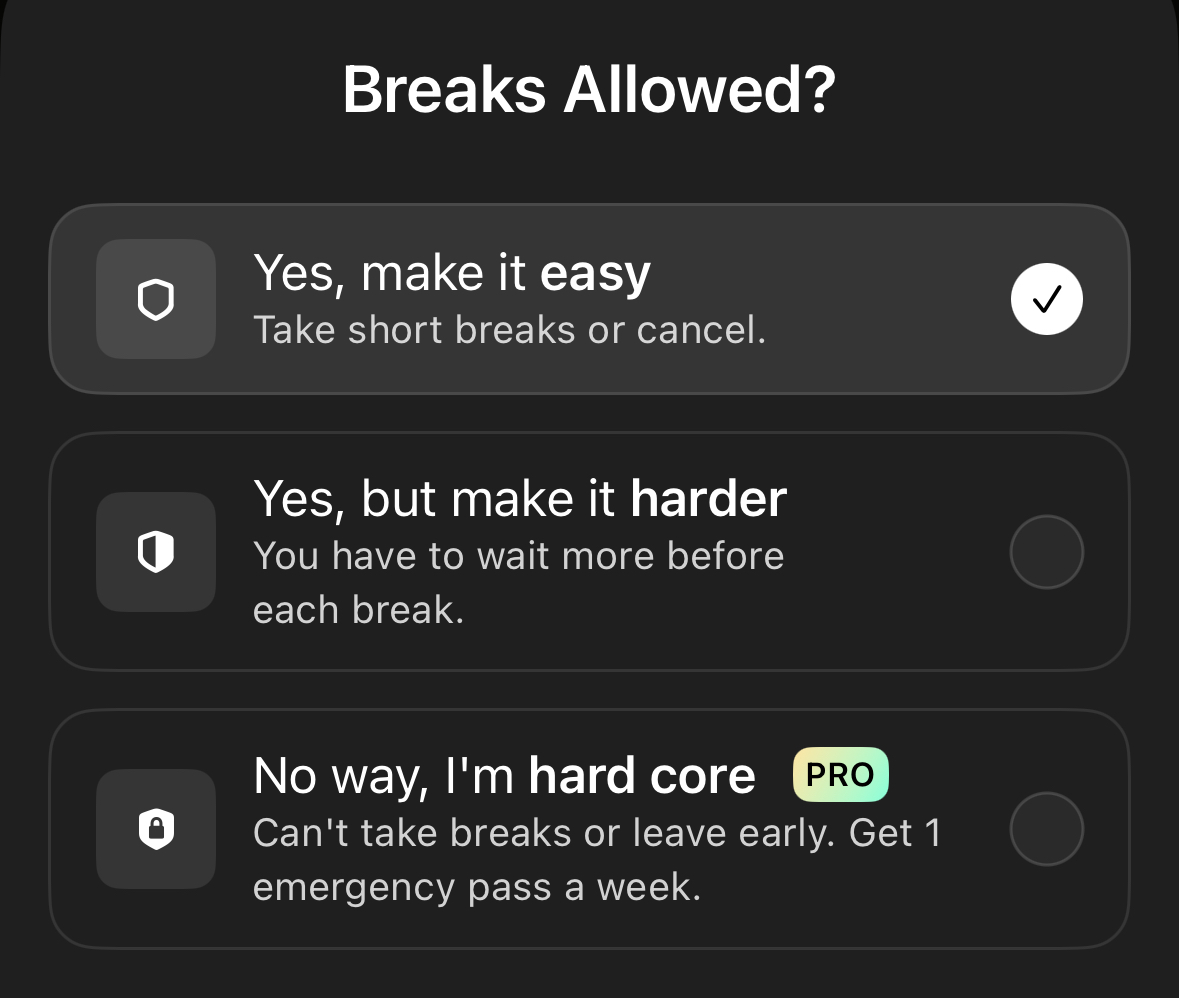
Session difficulty allows you to customise how you want Opal to work during your scheduled Sessions, Time Limits, and Open Limits. To add a Session or Limit on the iOS version, tap on the “Blocks" tab. When scheduling your Session, select the “No way, I'm hardcore" difficulty, which will not allow you to take a break or end the Session early. It's important to note that "No way, I'm hardcore" is only available for Gems who've upgraded to Opal Pro. Finally, it's only possible to end a "No way, I'm hardcore" Session once per week using the instructions here.
Locking your access to Screen Time on your iOS device will prevent you from disabling Opal during a Session and will redirect you from Settings back to the Opal app when implemented. Follow these steps to enable this feature.
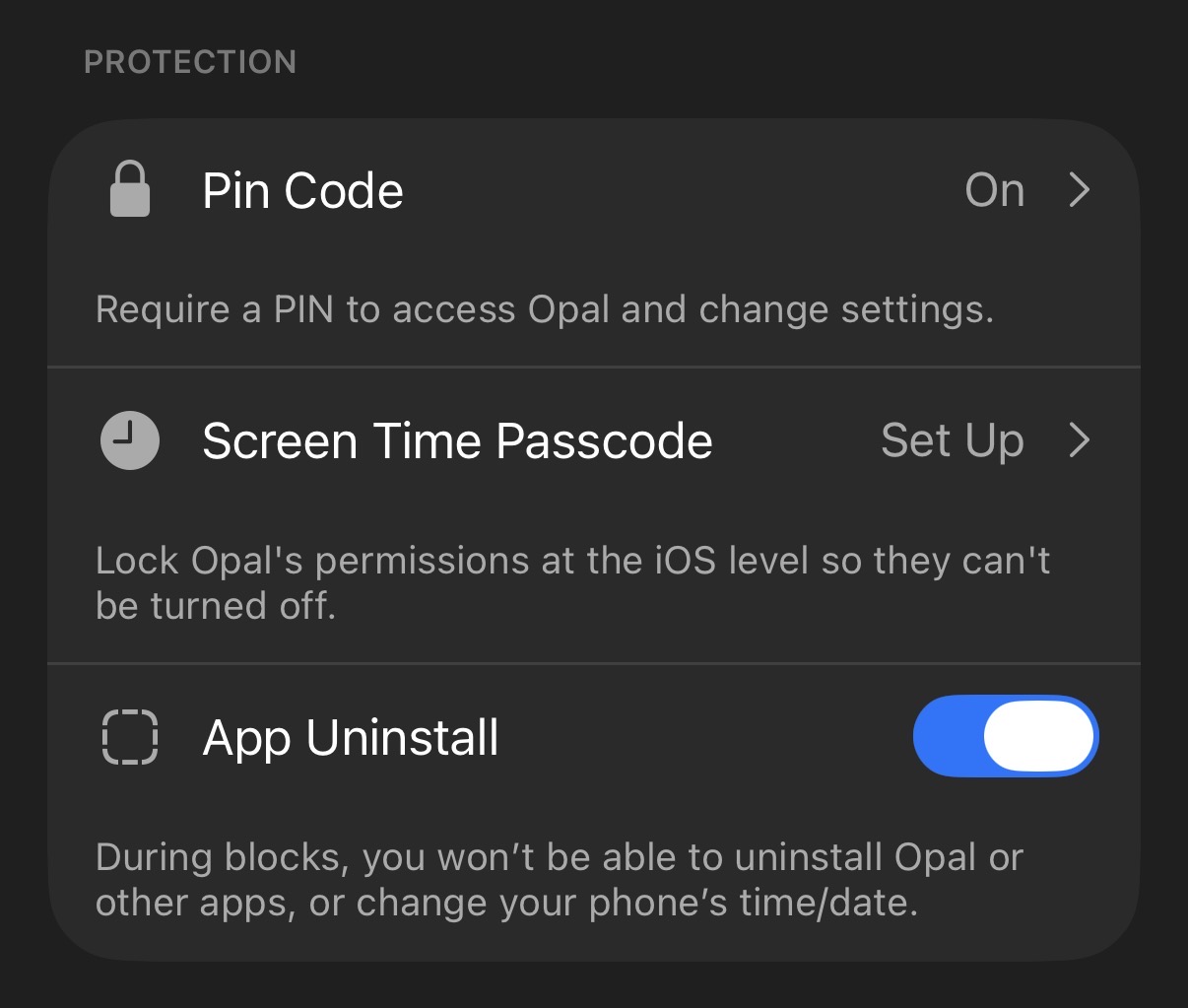
“App Uninstall Protection” prevents you from uninstalling Opal or other apps on your iOS device, or changing your phone's time/date, without first ending an Opal blocking Session. To enable “App Uninstall Protection,” follow these steps:
Please note that if you toggle on "App Uninstall Protection," you will not be able to delete any apps on your phone while in Session. Instead, they will be moved to your app library when you attempt to delete them. If you want to delete apps on your phone, you will need to toggle off "App Uninstall Protection," which you may only do when you are not currently in a Session.
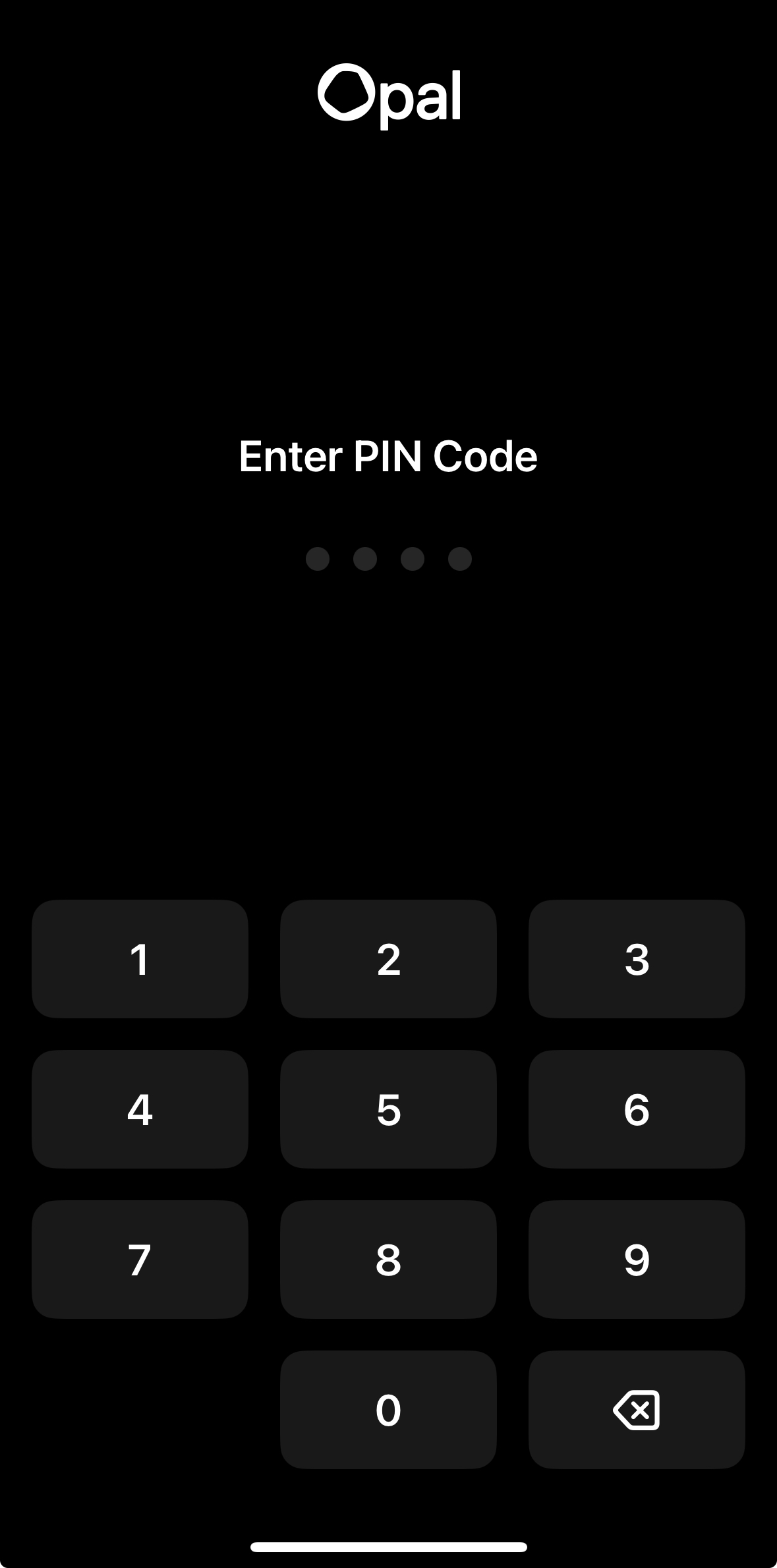
Opal's “Pin Code” feature forces you to input a Pin Code before you are able to open Opal. To enable your “Pin Code,” follow these steps:
Now, whenever you attempt to open Opal, you will need to input your Pin Code. There's more info on that feature here.
