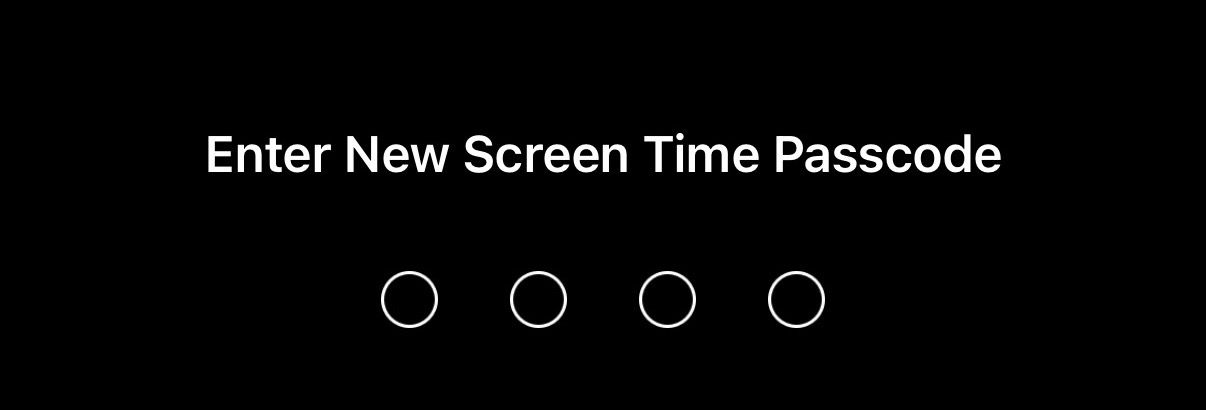
To help make your Opal Sessions, Time Limits, and Open Limits foolproof, you can now implement a Screen Time Passcode on the iOS version of Opal. A Screen Time Passcode is a 4-digit code set in your iPhone's Settings that prevents Opal's access to Screen Time from being disabled. Available if you upgrade to iOS 26.4, it will mean that once your Screen Time Passcode is set, it must be inputted to toggle off Opal's access to Screen Time. This means no one can turn off Opal's permissions without knowing this code. Please note that this feature is separate from your device passcode and separate from Opal's Pin Code Protection feature. Together, they make Opal fully tamper-proof.
Important Note: on earlier iOS versions, the Screen Time Passcode feature exists, but Face ID or your device passcode can be inputted to bypass it. Please update to iOS 26.4 so that this feature can not be bypassed.
How do I set up the Screen Time Passcode on iOS?
We recommend having a trusted friend, partner, or family member set up the passcode on your behalf so that you don't know it yourself. To do so, follow these steps:
Open "Settings" on your iPhone
Tap "Screen Time"
Tap "Lock Screen Time Settings"
Enter a 4-digit passcode — to make this foolproof, be sure to hand your phone to your trusted person and let them choose the code
Confirm the passcode
Once implemented, your Screen Time Passcode will be required to delete Opal, or to disable Opal's access to Screen Time.
How can I lock Opal's Screen Time Access if my iOS device does not support iOS 26.4?
If your device does not support iOS 26.4, you may instead use the built-in iOS Shortcuts app to restrict access to your iPhone's Settings during an Opal Session. This prevents toggling off Opal's Screen Time permissions. Please note that once this setup is complete, you won't be able to open your iPhone or iPad's Settings while an Opal Session is active, unless you initiate a break. To do so, follow these steps:
Find the Shortcuts app on your iPhone or iPad and open it. If you do not have it on your phone, you may download it here
Tap on "Automation" in the bottom menu bar
Tap on the "+" icon in the top right corner of the screen if you have existing Automations; select "New Automation" in the centre of the screen if not
Scroll down and select "App"
On the new screen, tap on "Choose"
Input "Settings" in the "Search Apps" bar
Select the app and tap "Done"
Select "Is Opened" and select "Run Immediately"; disable "Notify When Run"
Tap "Next" in the top right
Tap on "New Blank Automation"
Type "Opal" in the "Search Actions" bar
Select "Is Opal protection On?"
Toggle off "Show When Run"
Input "If" in the "Search Actions" bar and tap on it
Once you have done this, you should see "If Is Opal protection On?"
In the "Search Actions" bar, input "Open App" and select it
Once that action appears on the screen, tap the word "App" beside "Open"
Input "Opal" in the Search and select it
Drag and drop the "Open Opal" action so it is below the "If" condition. You can do this by tapping and holding your finger on the "Open Opal" Action, then dragging your finger to the correct location
Once you've set up the "If" condition and the "Open App" action, review your automation to make sure everything is correct. When it is, tap on "Done"
Now that your automation is set up, test it to ensure it works as expected. You can do this by starting a Session in the Opal app, and then trying to open the iOS Settings App. You should see the Opal app opening instead
Final bonus steps: Add Shortcuts to your Opal Sessions. Add the Shortcuts App to all of your app groups. This will prevent you from disabling the Automation you set up
I've figured out how to disable this foolproof system! Now what????
If you've sorted out how to disable our existing foolproof system, we have an advanced level system you may implement using the “Shortcuts" app to prevent yourself from accessing “Settings” during a Session. To implement this “Settings Workaround” Shortcut, follow these steps:
Open the "Shortcuts" app
Tap "Shortcuts" or “Library” if using the iOS 26 interface
Tap the "+" button in the top-right
Tap "Search Actions"
In the field, type "Lock Screen," then tap to add
Tap "Search Actions" again, type "Go to Home Screen", then tap to add
Tap "Search Actions" once more, type "Opal," then tap "Start Session"
Tap "App List" and choose the block list you want to activate
Tap the toggle beside the shortcut name and rename it to "Settings Workaround"
Tap “Done" or the "<“ toggle if using the iOS 26 interface
Once the Shortcut is made, you must also create the “Automation” within the same “Shortcuts” app to trigger the Shortcut. To do so, follow these steps:
Tap the "Automation" tab
Tap “+” or "New Automation"
Scroll down and tap "App"
Tap "Choose"
Type "Settings" in the "Search Apps” bar, tap "Settings," then tap “Done” or "✔"
Tap on "Is Opened"
Tap "Next"
Tap on the “Settings Workaround” shortcut you just made
Tap on the Automation you just made
Tap on "Run Immediately"
Ensure “Notify When Run” is toggled off
Tap "Done"
When finished, this advanced level Automation and Shortcut combination will automatically lock your screen, return you to the Home Screen, and start an Opal block Session whenever you try to open your phone’s "Settings".
Please note that if you've locked Opal's screen time access, you can always take a break from your Session via Opal, unless you've selected "No way, I'm hardcore" Session difficulty. If you're in a "No way, I'm hardcore" Session and urgently need to leave, please follow the instructions here.
That's it! You have now installed our foolproof options for Opal on iOS. On that note, if your device does not support iOS 26.4, there are more community suggestions, including alternative Shortcuts, on the Opal community forum thread here.
Thank you for your feedback!
Oops! Something went wrong while submitting the form.